
Country Networks User Guide

Last updated: May 2025
About the Country Network User Guide
Welcome to the Country Networks User Guide, designed to support you in effectively managing and resolving various requests and challenges the participants are facing in KSS/Rails. This guide serves as a practical resource, offering step-by-step instructions, troubleshooting techniques, and best practices to navigate common issues.
About UNGC systems
UNGC operates several digital systems to engage with participants, track progress, and share knowledge. Here are a few of them:
- KSS (Rails/Participant Portal) - a secure platform where UNGC Participants can: update organization profiles, submit annual Communication on Progress (CoP)/Communication on Engagement (CoE) reports, submit Forward Faster commitments, manage contact details, etc. This is also the place from which Admins and Country Networks (CNs) can manage participants, download reports, or perform any other participant-related activities.
- Salesforce - CRM system used by Admins and CNs to manage participants, track engagement opportunities, view invoices, etc.
- Academy (Litmos) - a secure platform where UNGC participants can access Academy courses, take part in Accelerators, etc.;
CoP (Qualtrics) - a secure platform where UNGC participants can submit their CoPs; please note that starting 2026 CoP might move to a different platform;
Most of the systems interact with each other to some extent. While there are other systems in the equation, we will not cover them in this guide.
This guide will focus exclusively on KSS (Rails), specifically on managing participants within the platform.
KSS (Rails) CN Dashboard:
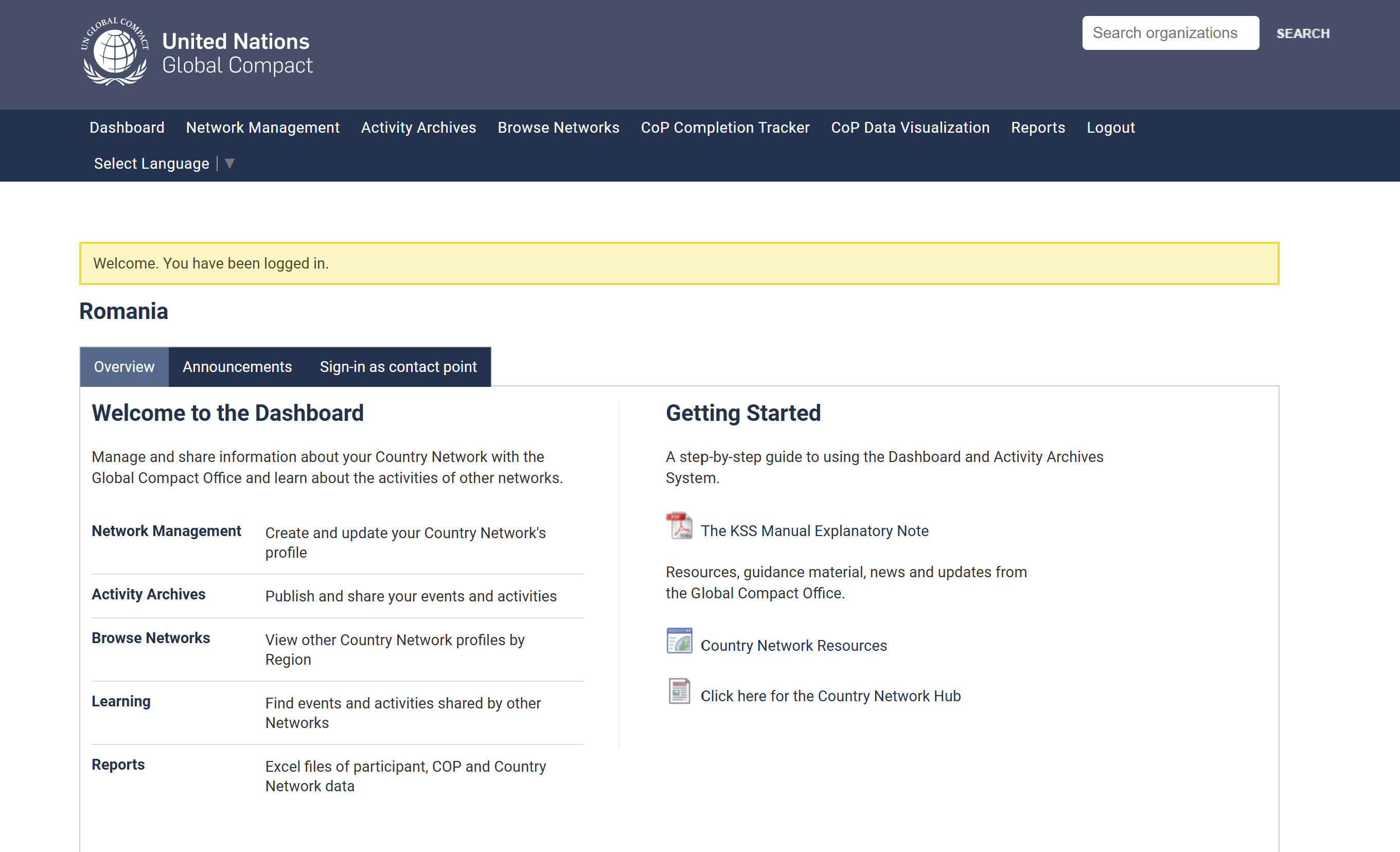
Header:

Dashboard - takes you to the Country Network Dashboard (same page)
Network Management - you can manage Country Network contacts from here;
Activity Archives - outdated feature; needs to be removed;
Browse Networks - you can see other Country Networks from here;
CoP Completion Tracker - see CoP completion progress in a reporting period;
CoP Data Visualization - see how companies have responded to CoP;
Reports - see various reports;
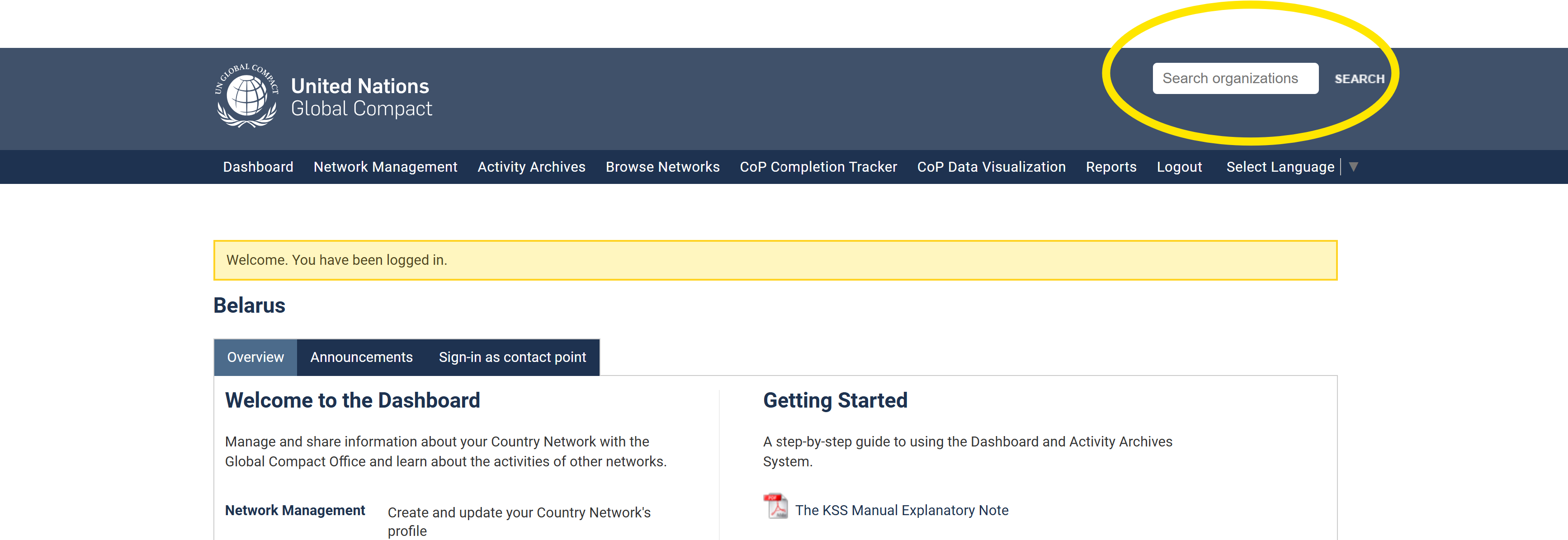
Search feature
Search feature helps you find any Participant (Business or Non-Business) from your jurisdiction.
How to search for an Organization?
- Use the "Search" functionality situated in the upper right corner of the screen;
- Input the Organization Name OR Organization ID;
- Click "Search" or press "Enter";
- You should be able to see the profile of the Organization you were looking for; If more Organizations are displayed, you can click on whichever you looked for, either by clicking on the respective row, or by clicking on the "Eyeball" icon on the right side of the table; clicking on the "Edit" icon will take you to the respective Organization's Edit details page;

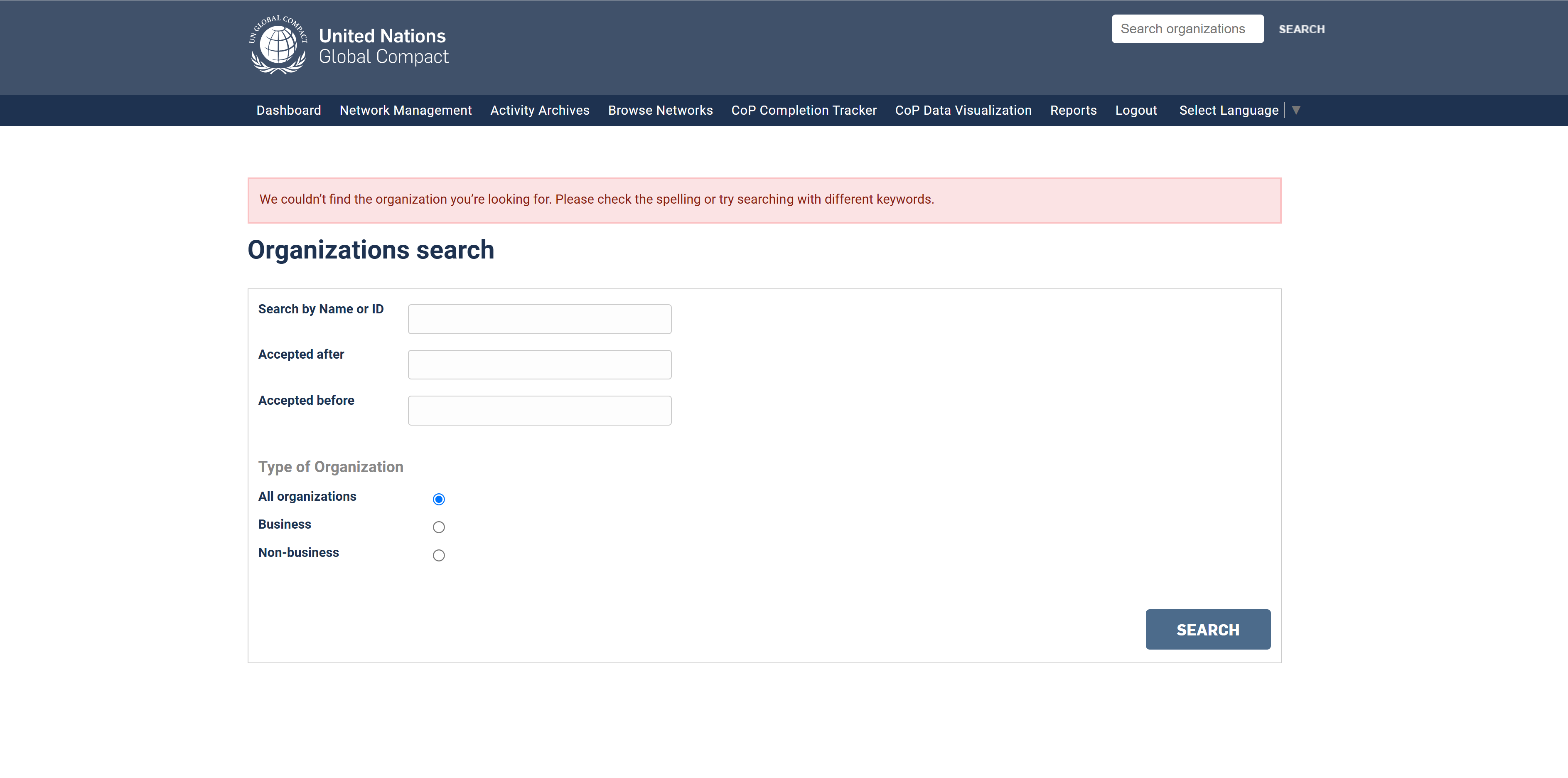
Potential issues:
Organization is not found - error message displayed is "We couldn’t find the organization you’re looking for. Please check the spelling or try searching with different keywords." This could have two causes:
1. Name or ID was written incorrectly;
2. Organization is not part of the Country Network (e.g. If I am CN Spain, but I search for a company situated in UK, I will not be able to find it)
Sign-in-as-contact-point feature
This feature will likely be discontinued soon! It is replaced by the Search feature, which enables CNs to directly access any Participants in all states (from pending review to active to delisted) within their jurisdiction.
About the Sign-in-as-contact-point feature
This feature was intended to help CNs access and manage Participants within their jurisdiction. It "impersonates" a Participant's user who has the Contact Point role. By signing in as a Contact Point of the company, the CN was able to manage participants or virtually do anything a Contact Point would be able to do in KSS (Rails).
Limitations of the Sign-in-as-contact-point feature
It only displays Contact Points of active & non-communicating Particpants with confirmed accounts, preventing CNs from managing companies whose Contact Points hadn't confirmed their accounts or whose status is Delisted.
📚 Table of Contents
- Type of Organizations
- Business Application Form
- Non-Business Application Form
- Academy Form
- Contact Point Form
- Account Creation Flow
- How to Search for an Organization
- How to Edit an Organization's Details
- How to Add a Contact
- How to Edit a Contact's Details
- How to Delete a Contact
- How to Set up a Password
- How to Change a Password
- Most Common Scenarios or Requests
Type of Organizations
Organizations can be of two types: Businesses and Non-Businesses. The only substantial difference is that Businesses must submit a Communication on Progress (CoP) report, while Non-Businesses a Communication on Engagement (CoE) report.
Businesses are further split into:
- SMEs (Small and Medium Enterprises)
- Companies.
Non-Businesses are further split into: (starting 1 July 2025)
- Academic
- Civil Society and others
- Business Associations
Business Application Form
Link: https://unglobalcompact.org/business-application-form
Business Application Guide: https://unglobalcompact.org/handbook/business
A detailed guide on how the user should fill out the Application Form: here
Non-Business Application Form (applications currently closed)
Link: https://unglobalcompact.org/non-business-application-form
Non-Business Application Guide: https://unglobalcompact.org/handbook/non-business (currently not available due to applications being closed)
A detailed guide on how the user should fill out the Application Form: here
Academy Form
Link: https://unglobalcompact.org/academy-new-account
Academy User Guide: https://info.unglobalcompact.org/academyuserguide
Academy Form is currently open to everyone who wants to access Academy (Litmos) platform. By submitting it, the user will create an account and will be assigned the Academy role in KSS. Academy users (those users who only have the Academy role selected in KSS) are only able to access Academy. For troubleshooting issues, send an email to academy@unglobalcompact.org
Contact Point Form
Link: https://unglobalcompact.org/contact-point-new-account
Through the Contact Point Form a user can become a Contact Point for an organization. By submitting it, the user will create an account and will be assigned the Contact Point role in KSS. This means they will be able to manage the organization’s details and the associated contacts under that organization.
This form is not publicly accessible and should only be shared with users who specifically request to become Contact Points.
Account creation flow
All users, regardless of how they create their accounts (either through the 4 Forms above or by being manually created by a colleague, CN or admin in KSS/Rails), will follow the same account creation flow. The steps are outlined below:
- Account is created either manually or through a form;
- User receives a "Set up your password" email; the token (link) in the email is valid for 48h;
- User must set up a password;
- Once user set up a password they are automatically logged in to KSS;
- User receives an "Account successfully created" email;
How to search for an Organization?
- Use the "Search" functionality situated in the upper right corner of the screen;
- Input the Organization Name OR Organization ID;
- Click "Search" or press "Enter";
You should be able to see the profile of the Organization you were looking for;
Potential issues:
Organization is not found - error message displayed is "We couldn’t find the organization you’re looking for. Please check the spelling or try searching with different keywords." This could have two causes:
1. Name or ID was written incorrectly;
2. Organization is not part of the Country Network (e.g. If I am CN Spain, but I search for a company situated in UK, I will not be able to find it)
If you want to search for Organizations in other countries, you can use the public participant list: https://unglobalcompact.org/what-is-gc/participants
How to edit an Organization's details?
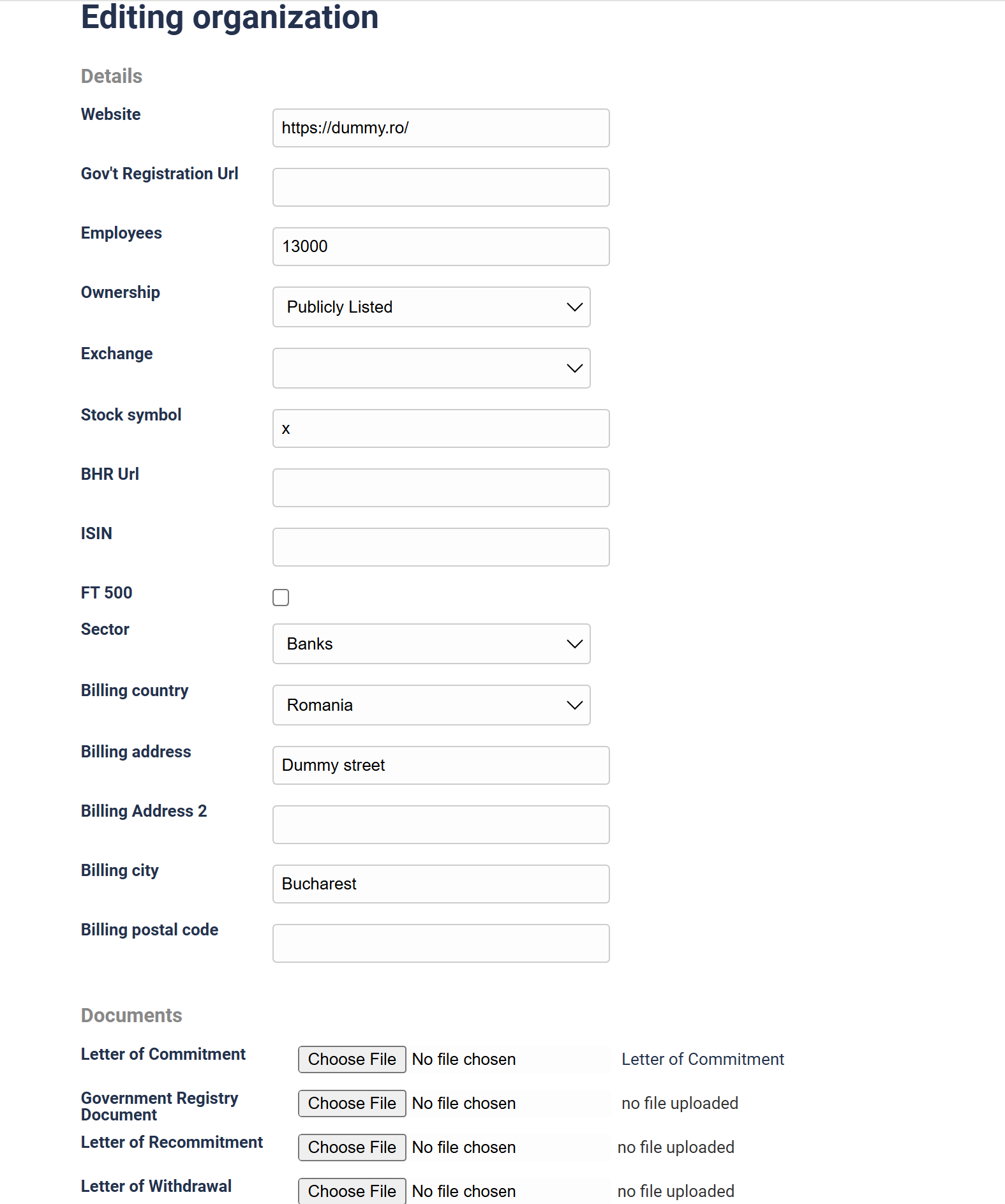
Search for the Organization using the "Search" functionality;

Click on "Edit";
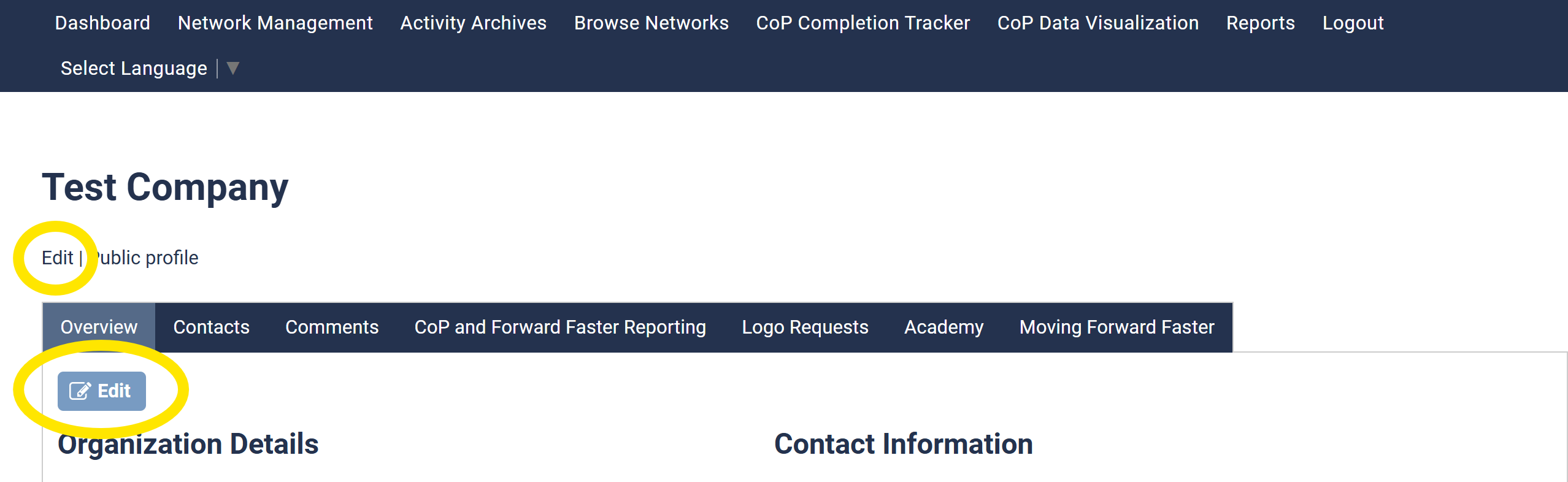
Update the relevant field;
Please note that "Revenue" can only be changed from Salesforce!
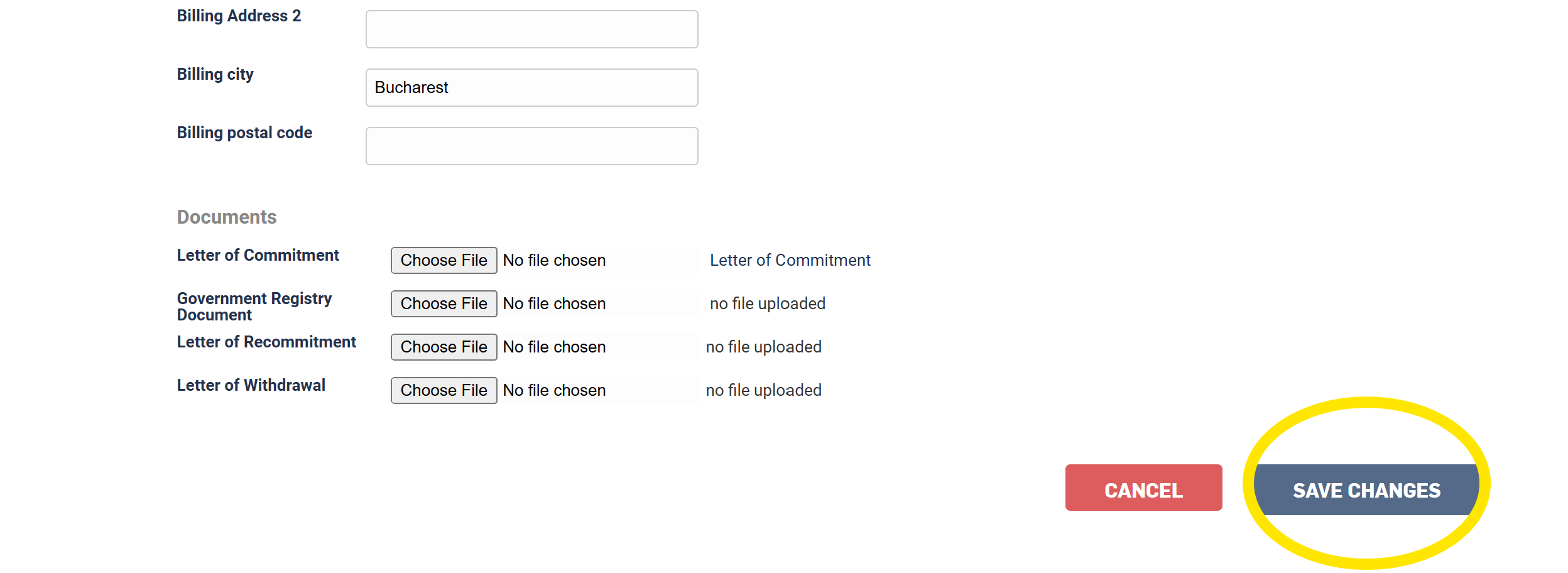
Click "Save changes"
How to add a Contact?
There are several ways to add a Contact to an Organization. While our long-term goal is to encourage and empower Participants to manage their own accounts, the steps below can be followed if support is needed to add a Contact manually.
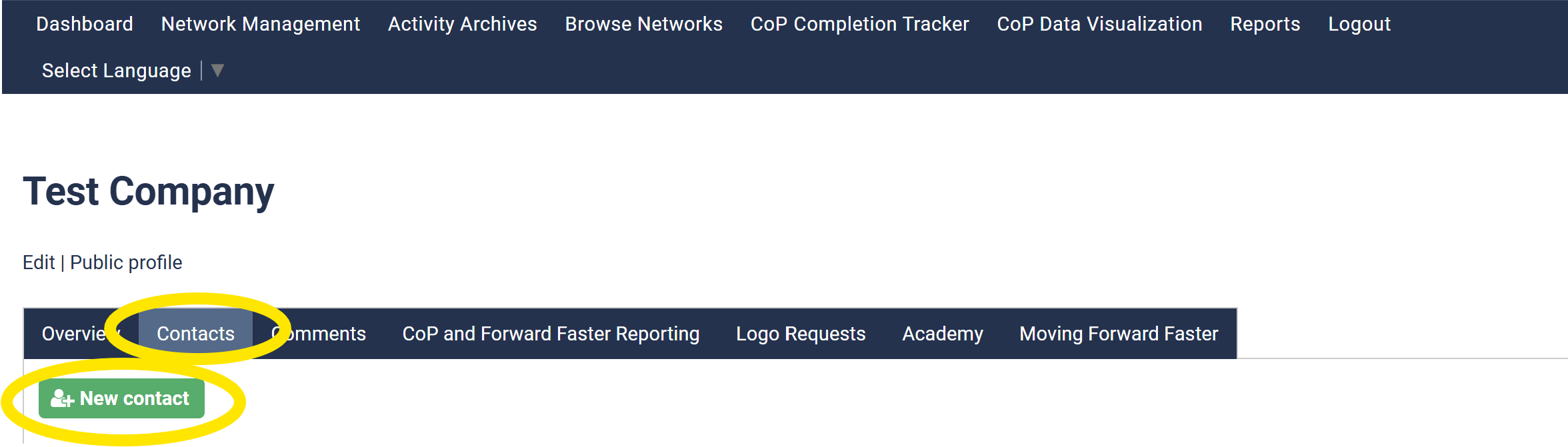
- Search for the Organization using the "Search" functionality;
Go to the Contacts tab and click on "New contact" symbol;
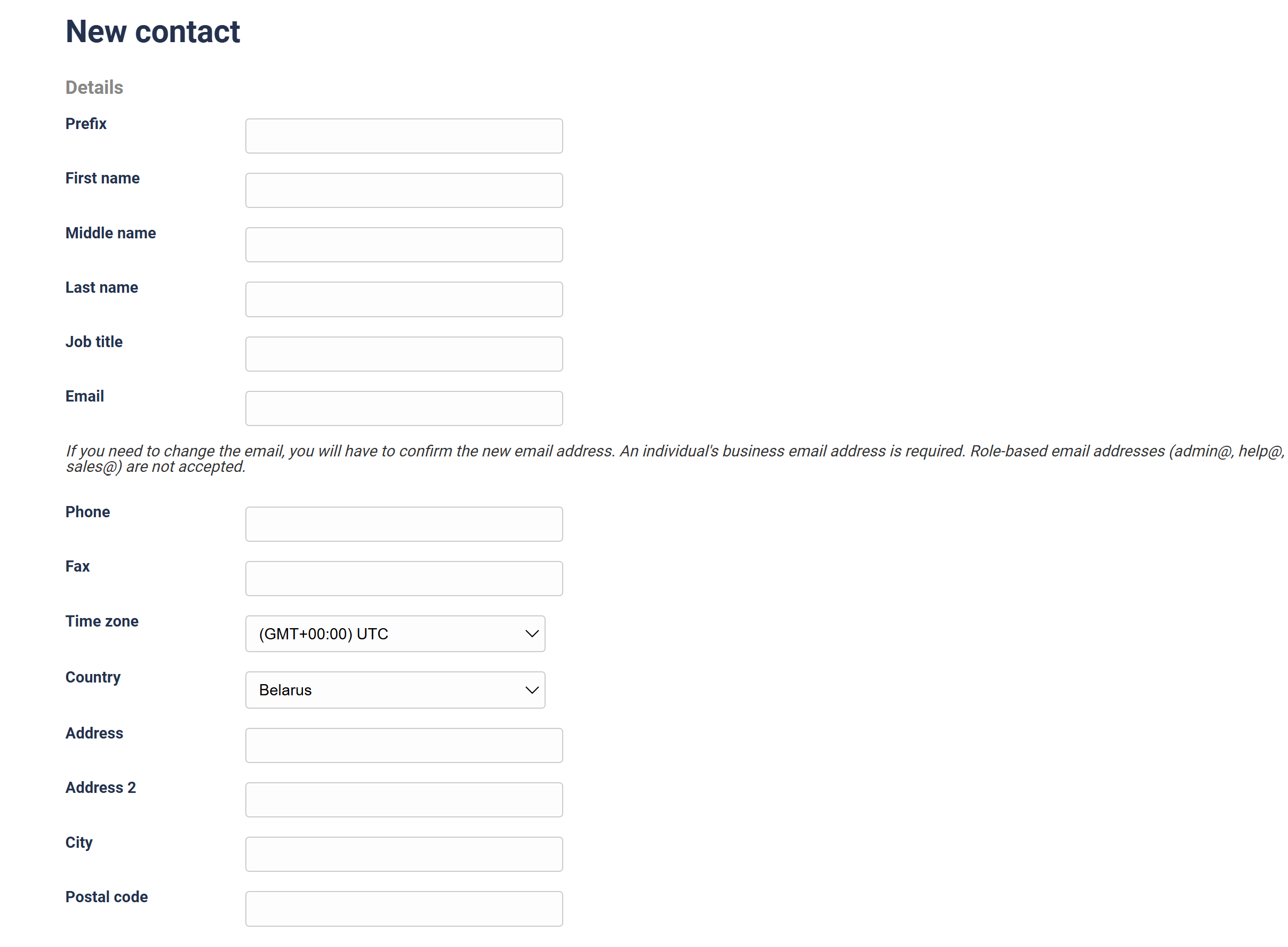
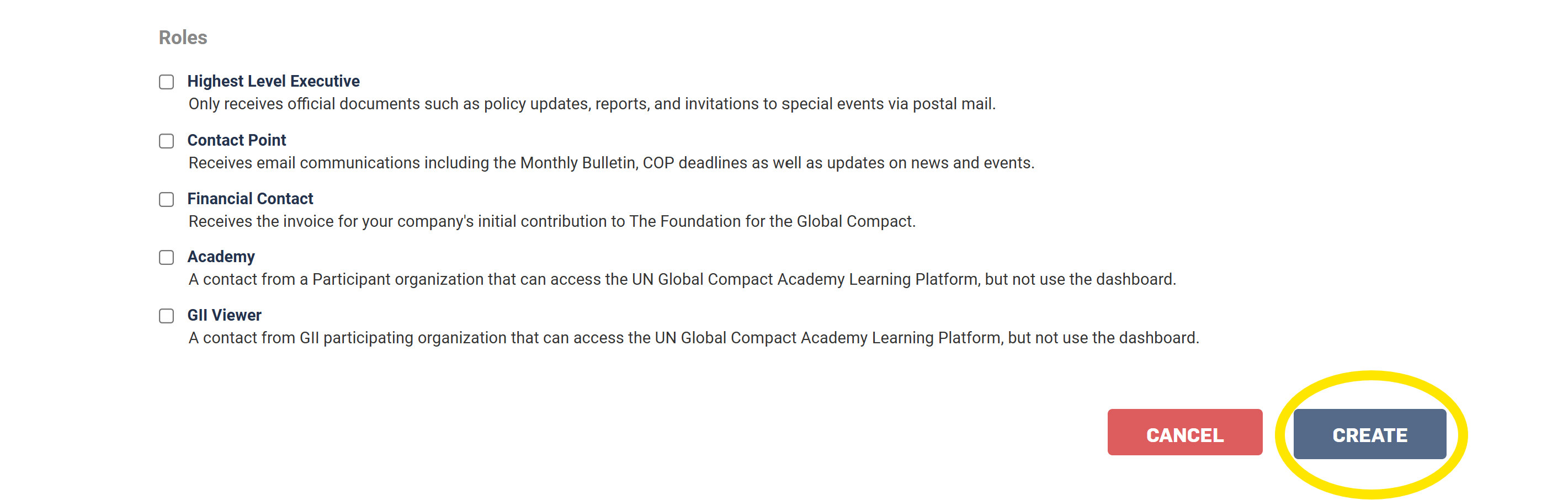
Add the Contact details - please note that only First Name, Last Name, Job title, Email and Role are mandatory! Some countries also require State/Province. All the other fields are optional.
Particular situations:
Adding a Highest Level Executive - select the Highest Level Executive role; please refer to the Most common scenarios section when adding a new Highest Level Executive;
Adding a Contact Point - select the Contact Point role / Alternatively you can empower the user to self-create a Contact Point account using the Contact Point form
Adding a Financial Contact Point - select the Financial Contact role
Adding an Academy user - select the Academy role / Alternatively you can empower the user to self-create an Academy account using the Academy form
Mentions:
ℹ️ The system only allows one account per email address, meaning each email must be unique and cannot be used for multiple contacts. However, an account can have multiple roles.
ℹ️ An account can hold multiple roles (e.g. Contact Point, HLE and Financial Contact). Submitting the Contact Point or Academy form assigns only the specific role related to that form. To assign additional roles, the user—or a CN or admin—must edit the account and manually add the desired roles.
ℹ️ Contacts with any role other than Academy automatically have access to the Academy platform. Only those whose sole role is “Academy” may have conditional access. Examples:
Contact A has only the Contact Point role – they have access to Academy.
Contact B has only the Academy role – they also have access.
Contact C used to have the Academy role assigned, but the Contact Point deselected it (thus it doesn't have any role assigned) – they do not have access to Academy.
ℹ️ Usernames are being phased out. Old accounts can still log in using either their username or email address, while new accounts no longer have a username and can only log in using their email address.
4. Click "Create";
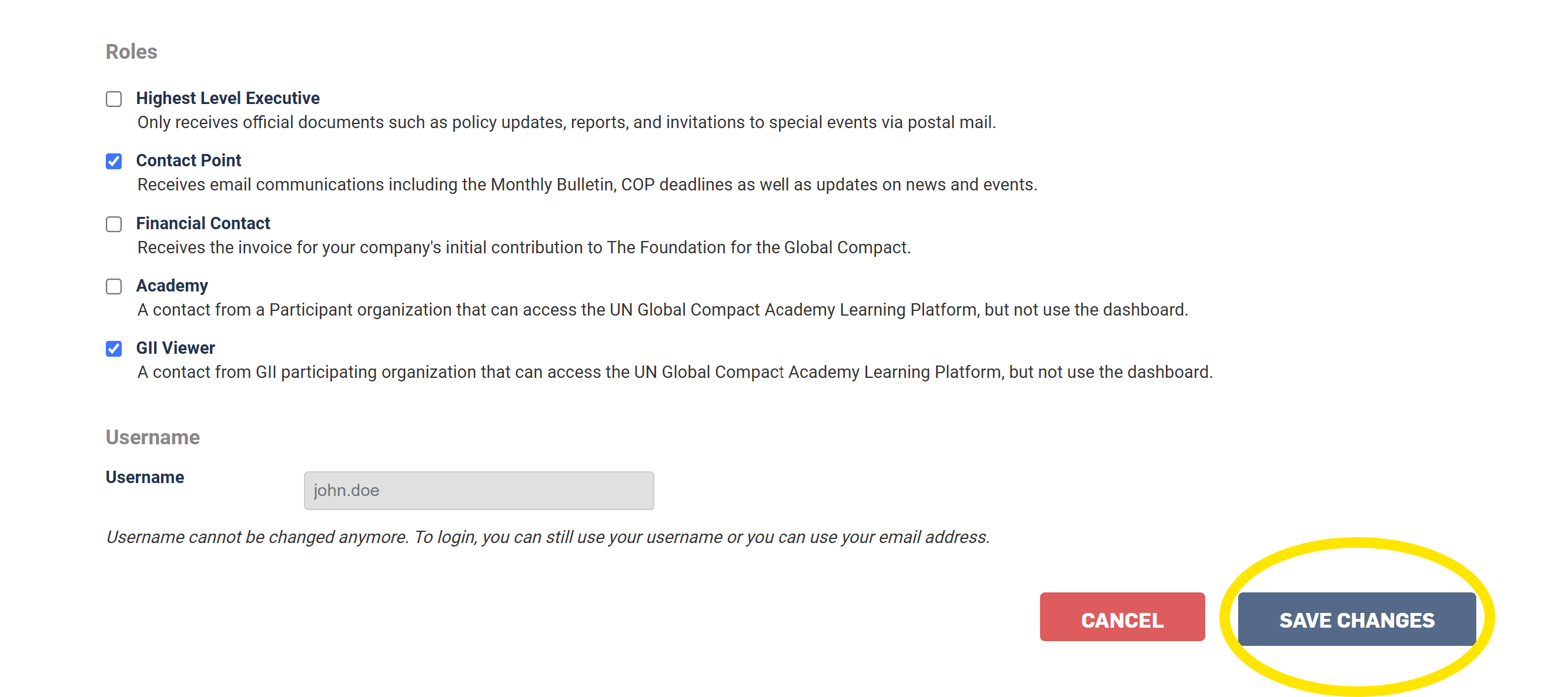
How to edit a Contact's details?
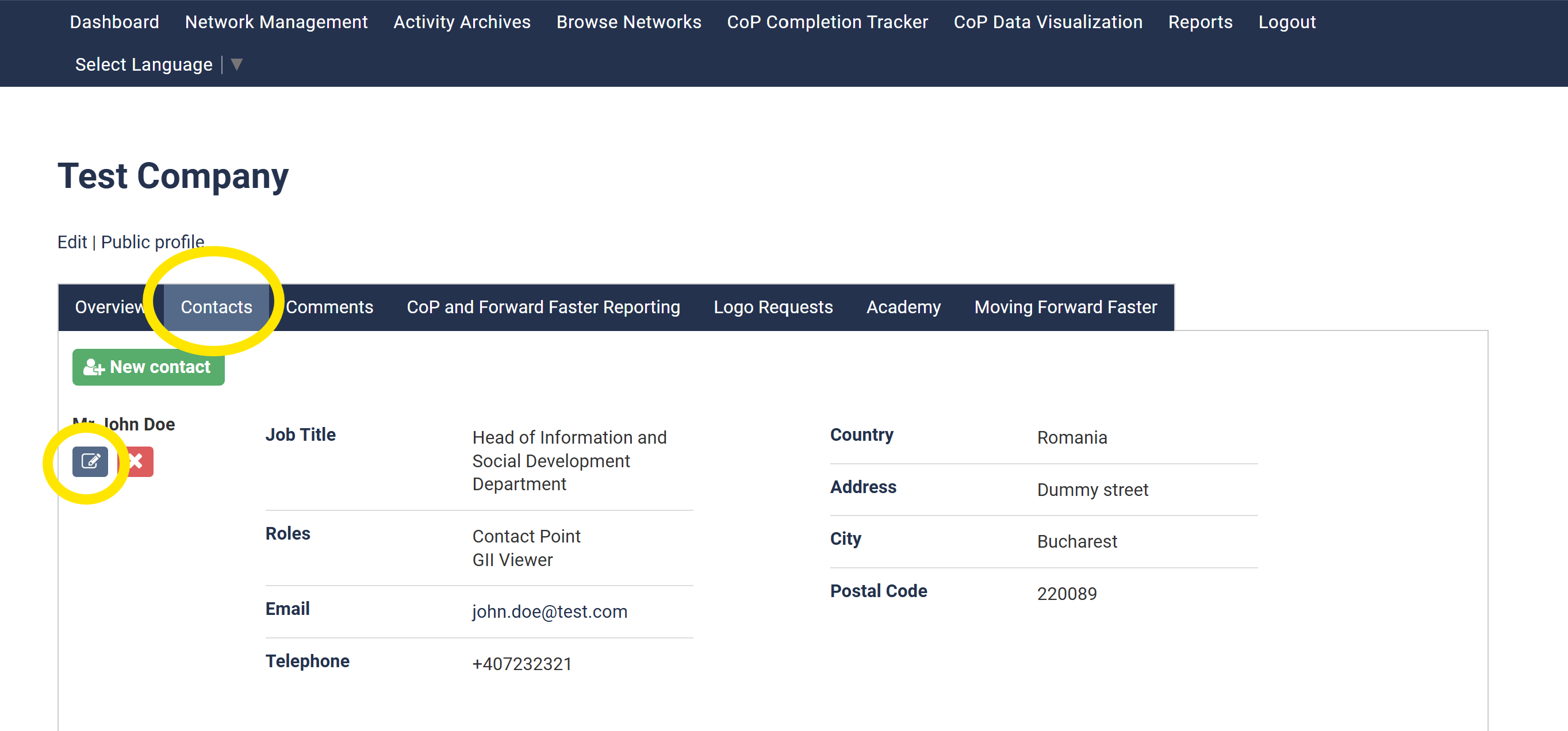
- Search for the Contact's Organization using the "Search" functionality;
Go to the Contacts tab and click on the "Edit" symbol;
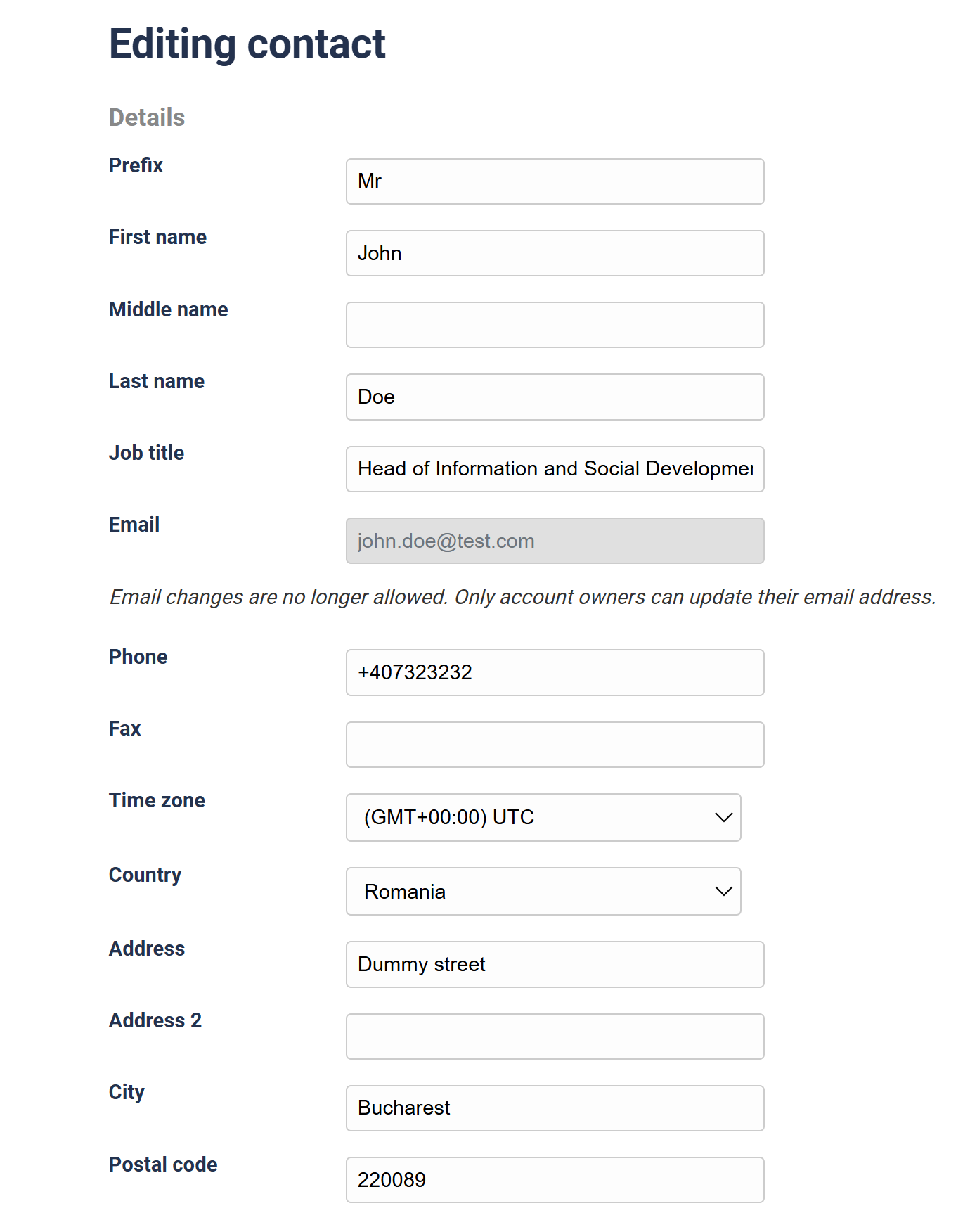
Update the relevant field;
Kindly note that the Email address and Username can no longer be updated by a Country Network or an Admin. Emails can only be updated by the account owner. For guidance on how participant emails can be managed, refer to the “Most common scenarios” section.
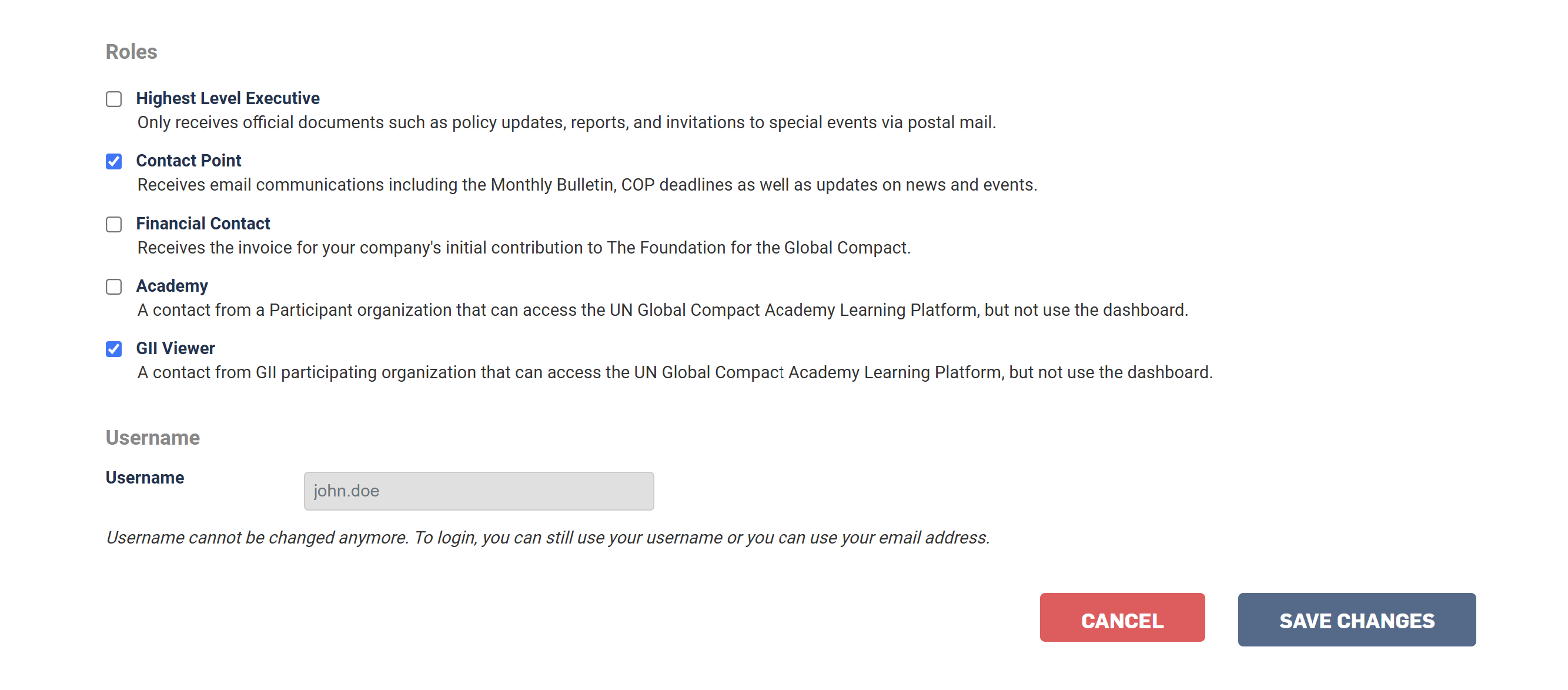
Click "Save changes";
How to delete a Contact?
Search for the Organization using the "Search" functionality;
Go to the Contacts tab and click on "Delete" symbol;
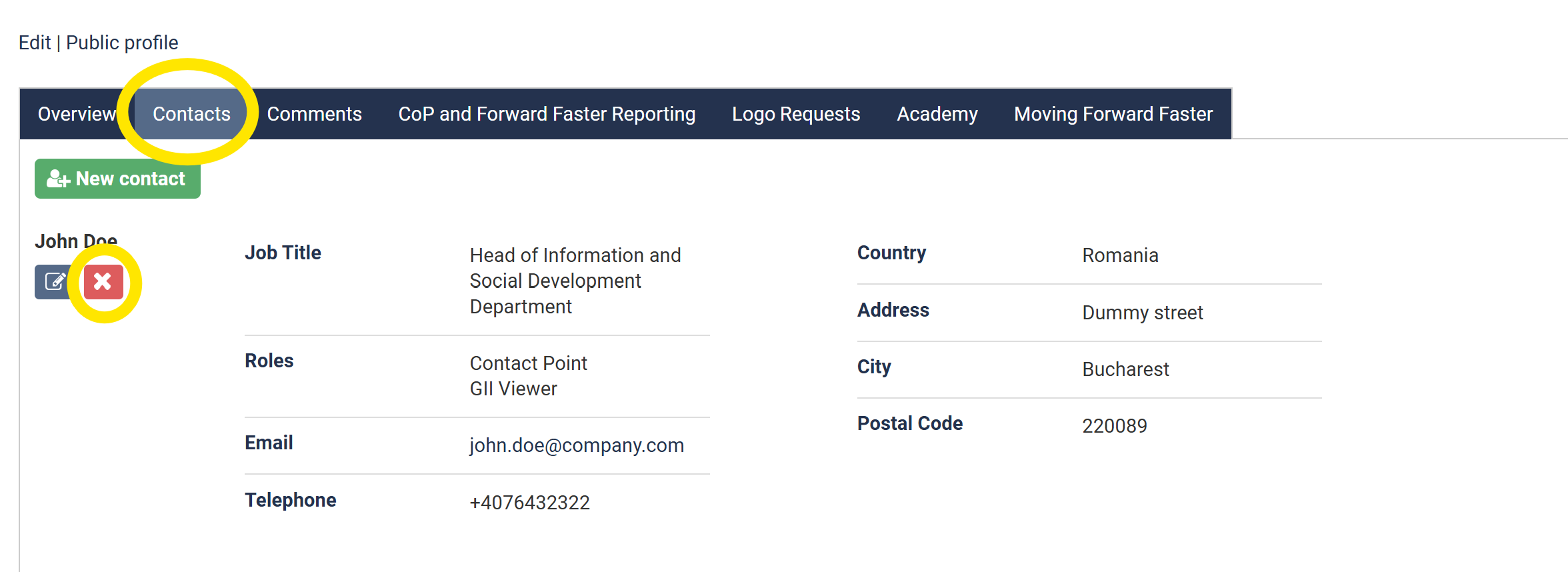
- Click "Ok" when the pop-up is displayed;
Potential error: Organization is missing the following Roles: Highest Level Executive/Contact Point/Financial Point. Please add these roles to the organization before proceeding" - in order to solve it, please make sure that there is at least one Contact Point, one HLE and one Financial Contact role per Organization.
How to Set up a password or Change a password for a user?
When an account is first created, the user automatically receives a “Set up your password” email. This step is essential for two reasons:
- It validates the account (i.e., confirms the user’s identity)
- It allows the user to set their password in order to access the KSS (Rails) platform.
🔁 This email can be sent multiple times until the user sets up a password. Once the password is created, the user will receive an "Account successfully created" email and this setup step is complete.
After the account has been validated (i.e., the user has set a password), the user can choose to change/reset their password. In this instance they will receive a "Change your password" email.
🔁 This email can be sent multiple times until the user changes their password. Once the password is changed, the user will receive an "Password successfully changed" email.
Steps to help the user Set up or Change the password:
Alternatively you can advise the user to follow the exact same steps:
- Go to https://unglobalcompact.org/password/new
- Input the user's email;
- Click "Submit";
The system automatically detects which of the two emails to send based on the email address provided.
Most common scenarios or requests:
Old Contact Point left, New Contact Point needs access to KSS
Solution: Either ask them to automatically create an account via the Contact Point form or manually create a new account for them;
Do not: update the old Contact Point's information with the new one!
Same Contact wants to update the email - this can happen either when a Contact is using a gmail address and wants to update to a business address or if the email domain of a company changes;
Solution: Users are able to update their own email address. Steps for the user to update the address: log in -> go to "Contact" -> go to his account -> click "Edit" -> change the email address -> click "Save changes" -> log out (very important step) -> follow the instructions from the "Set up your password" email;
Highest Level Executive's email needs to be updated - it can happen when a company's email domain changes
Solution 1 - if the HLE is active within KSS/Rails (has logged in before) - ask the user to follow the process as for the "Same Contact wants to update the email"
Solution 2 - if the HLE is inactive (his information is only kept for important communication) - steps for the CN: create a new account with the new email address -> (optional) delete the old account;
Highest Level Executive changes - it can happen when the someone leaves the company and someone else takes their place;
Solution 1 - ask the Contact Point of the Organization to create a new account for the new HLE and (optionally) delete the old account for the old HLE;
Solution 2 - steps for the CN: create a new account for the new HLE -> (optional) delete the old account for the old HLE;
Do not: update the old HLE's information with the new one!
Contact inputs a wrong email address when creating an account
Solution: Create a new account with the correct email address -> delete the account with the wrong email address;
User didn't receive a "Set up your password" or "Change your password" email
Solution: Before escalating it to the Participant Support Team, please make sure that the email address is correct; additionally, try to send a new "Set up your password" or "Change your password" email from this link;
Questions or any exceptional situations that couldn't be handled by the Participant Support team?
